AI UGC ads are the fastest way to create high-converting video content in 2026. They look like real user-generated content, but you can make them in minutes without hiring creators, shipping products, or learning video editing.
In this guide, you'll learn how to make AI UGC ads step by step. By the end, you'll be able to turn any product image into a professional video ad for TikTok, Instagram, YouTube, Amazon, or Shopify.
What You Need Before You Start
Before you open an AI UGC tool, gather these inputs. The quality of your final ad depends heavily on what you put in.
Required
- Product images or video clips: Clear, well-lit visuals of your product
- Product description: What it does and who it's for
- Target audience: Age, gender, interests, location, pain points
- Primary selling point: The one thing that makes your product worth buying
- Call-to-action (CTA): "Shop now," "Link in bio," "Use code SAVE20"
Optional but Helpful
- Lifestyle photos showing the product in use
- Brand logo or colors
- Customer reviews you can reference in the script
- Competitor ads for inspiration
Once you have these, you're ready to start.
How to Make AI UGC Ads: Three Ways on AI UGC Ads
AI UGC Ads gives you three ways to create AI UGC ads. Each one is designed for a different starting point and use case. You can use whichever fits your product and workflow best.
Option 1: Product in Hand
Best for: Quickly generating a UGC ad where an AI avatar holds and presents your product.
This is the fastest option if you have a clean product photo and want a polished, believable product demo.
How to use Product in Hand
Step 1: Generate a Hand-Held Product Image
Go to /app/product-in-hand. Upload your product photo and choose a virtual avatar. The AI will combine them into a realistic image of the avatar holding your product in hand.
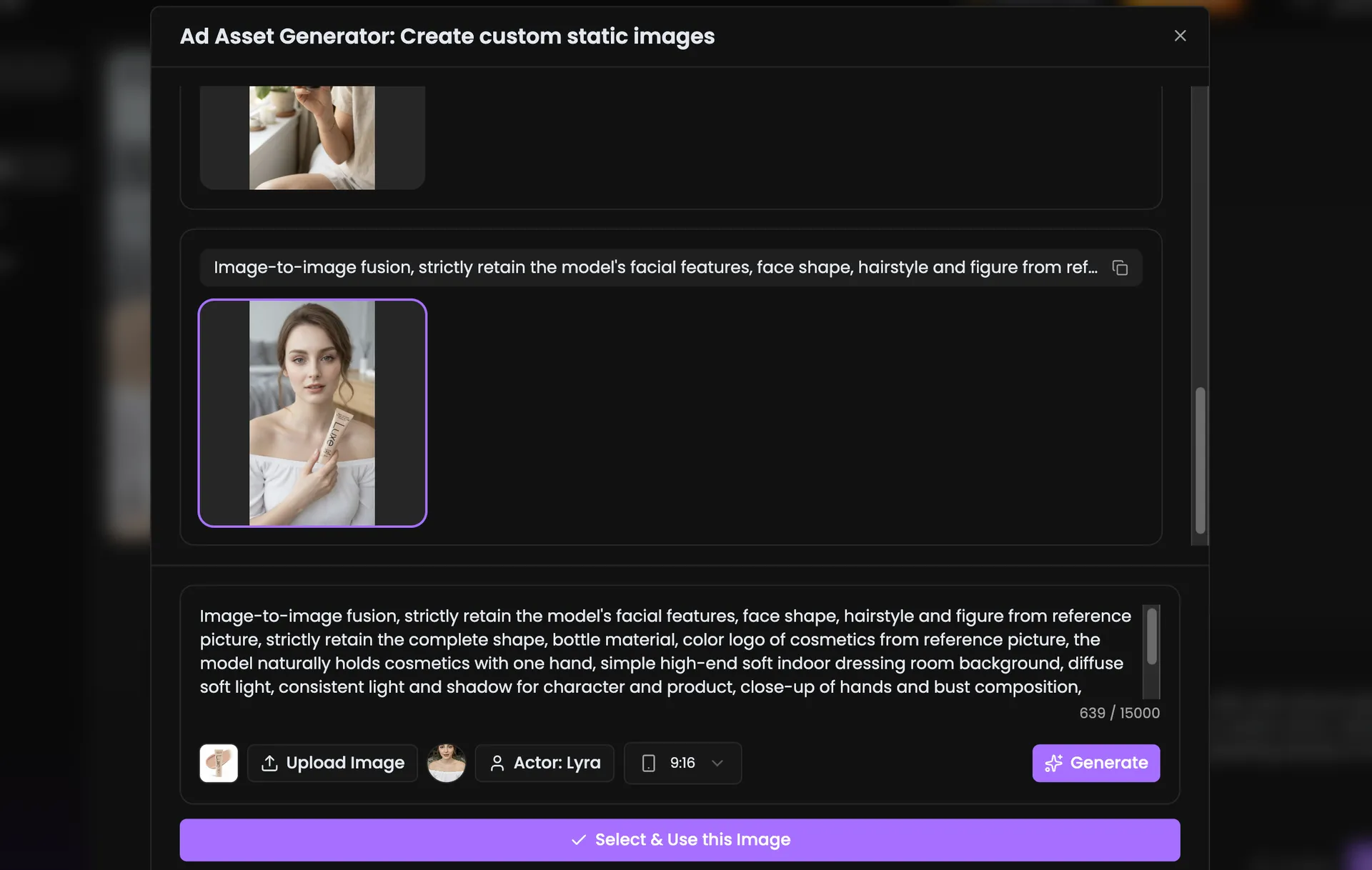 Upload your product and pick an avatar to generate a hand-held product image.
Step 2: Enter Your Script and Scene
Enter your script and scene details. The script is what the avatar will say, and the scene sets the look and feel of the final video.
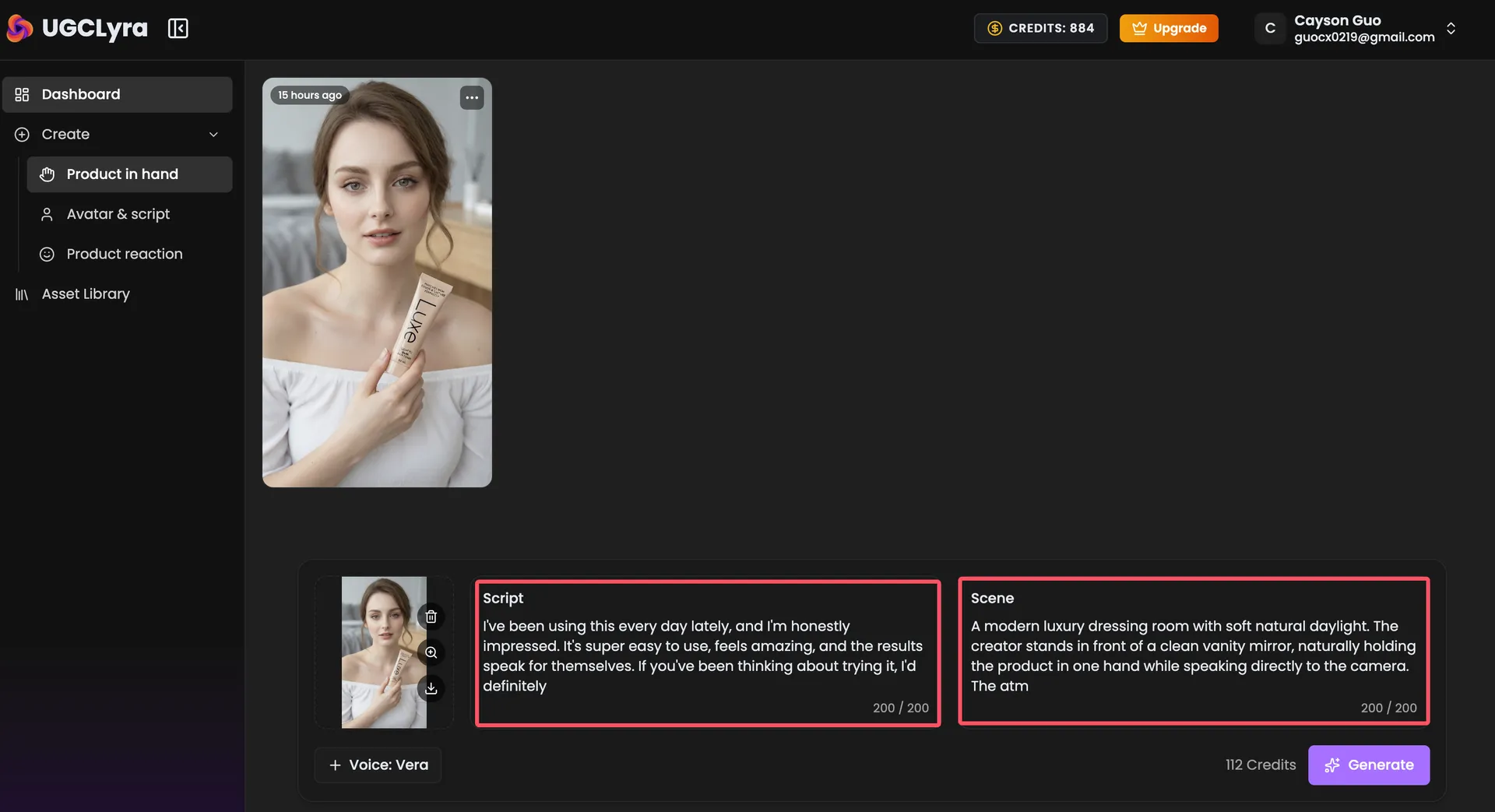 Enter your script and scene to control the message and visuals.
Step 3: Choose a Voice and Generate
Pick an AI voice that matches your script tone and audience. Then click generate to create the final Product in Hand video. Preview the result and export it for your chosen platform.
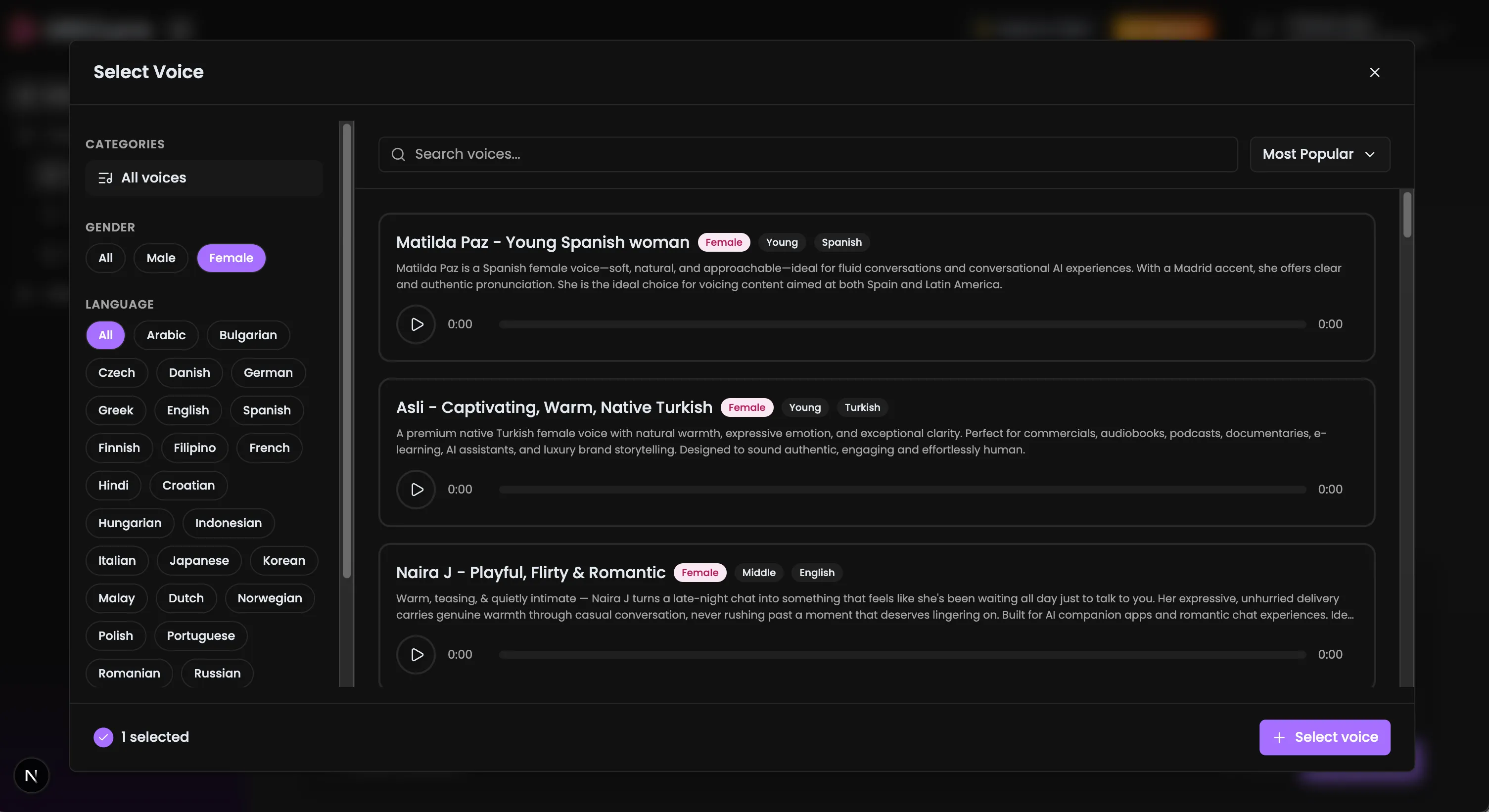 Choose a voice and generate your final Product in Hand ad.
Here is a complete Product in Hand demo:
Try Product in Hand →
When to use it:
- You want a quick product showcase
- You have a clear product photo
- You need content for TikTok, Reels, or product pages
Option 2: Avatar & Script
Best for: Full control over the script, avatar, and product visuals.
This option is ideal when you already know what you want the avatar to say, or when you want to test multiple script variations.
How to use Avatar & Script
Step 1: Upload Product and Choose Avatar
Go to /app/avatar-script. Upload your product image into the product slot, then select an AI avatar in the avatar slot. This setup gives you full control over both the visual presenter and the product being shown.
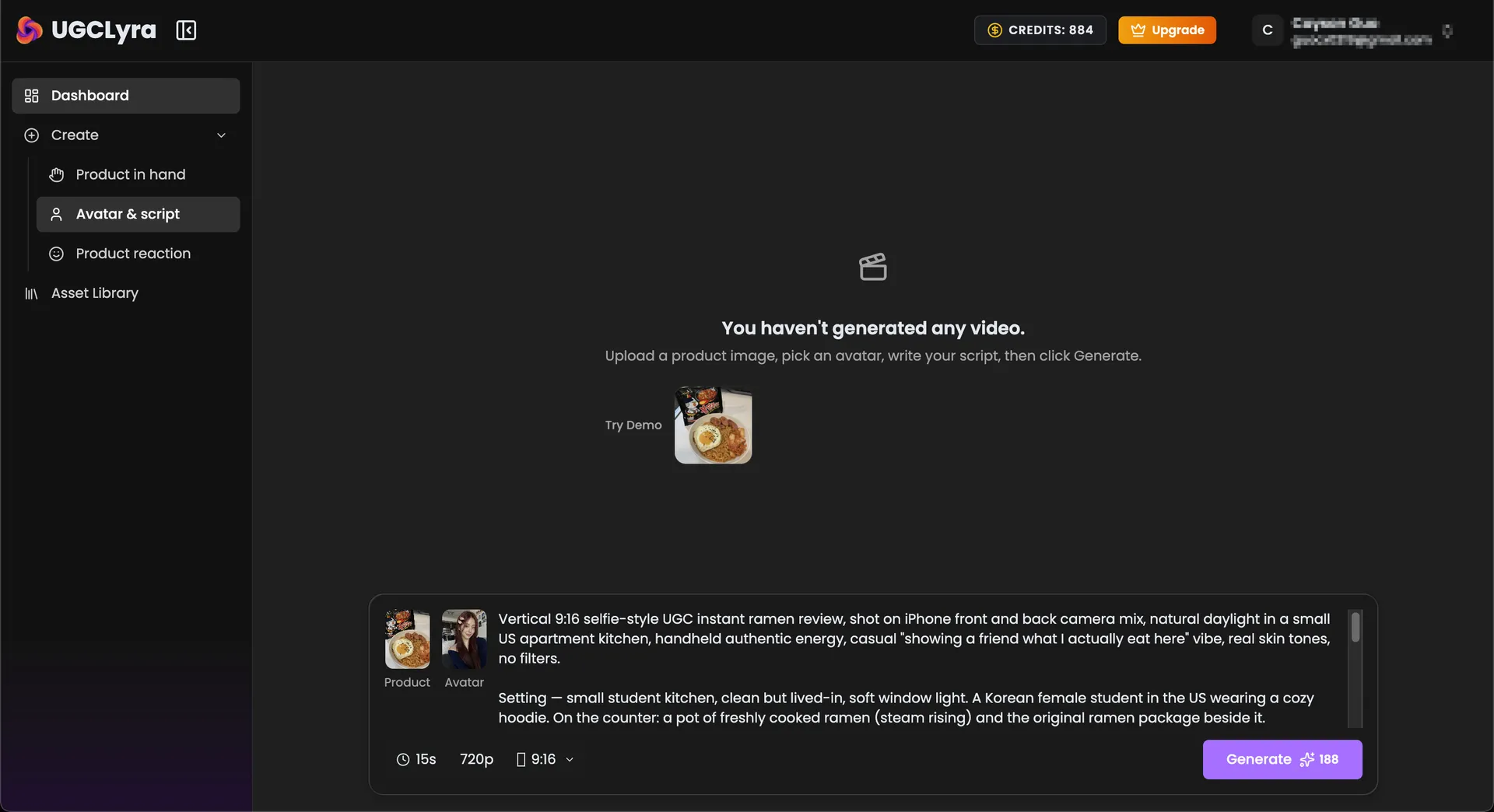 Upload your product and choose an AI avatar to present it.
Step 2: Write Your Script
Enter your script in the text area. Start with a strong hook, describe the problem, present your product as the solution, and end with a clear CTA. Keep it under 120 words for short-form platforms.
Step 3: Set Video Options and Generate
Choose your video duration, resolution, and aspect ratio. Then click generate. Once ready, preview and export the video for your chosen platform.
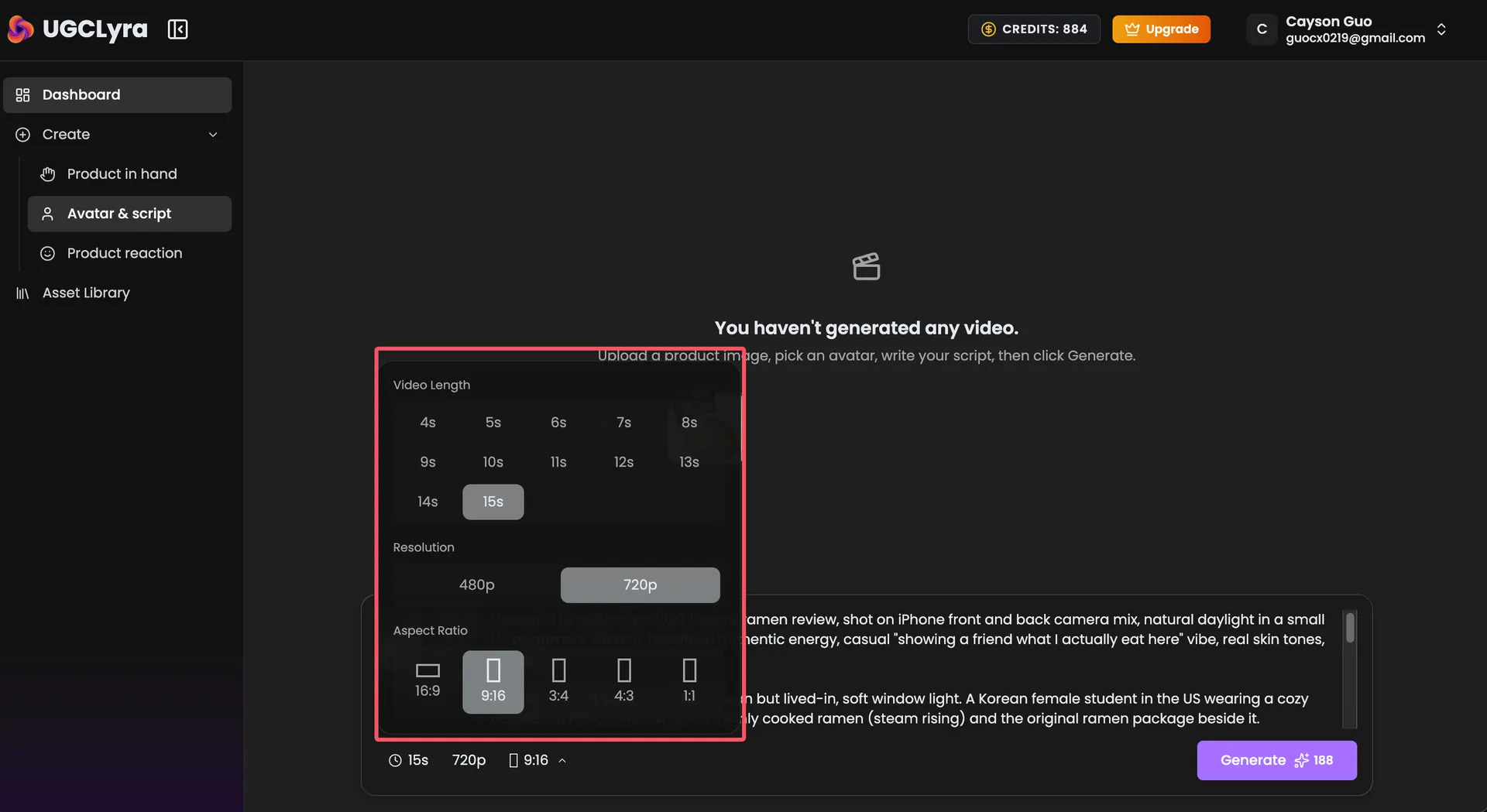 Set video options and generate your custom UGC ad.
Here is a complete Avatar & Script demo:
Try Avatar & Script →
When to use it:
- You have a specific message or offer
- You want to test multiple hooks
- You need full creative control
Option 3: Product Reaction
Best for: Creating review-style UGC ads where an AI avatar reacts to your product on camera.
Upload your product, pick a reaction style and a relatable avatar, then generate a review-style video that builds trust with viewers.
Try Product Reaction →
Export Settings and Format Guide
No matter which option you use, always export in the right format for your target platform.
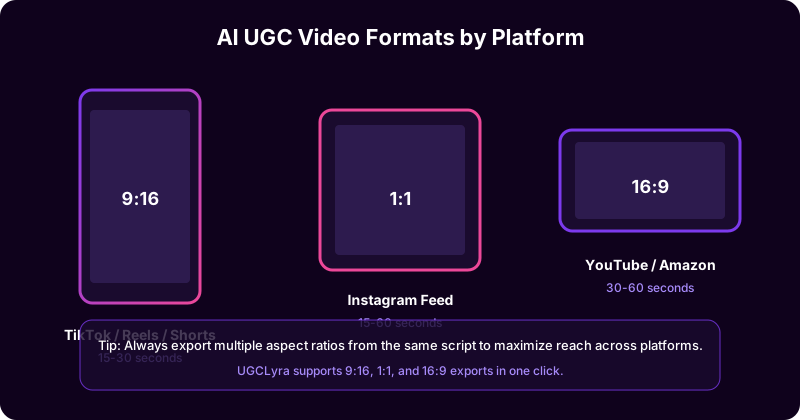 Choose the right aspect ratio for each platform to maximize engagement and ad performance.
| Platform | Format | Resolution |
|---|---|---|
| TikTok / Reels / Shorts | MP4, 9:16 | 1080x1920 |
| Instagram Feed | MP4, 1:1 or 4:5 | 1080x1080 or 1080x1350 |
| YouTube Ads | MP4, 16:9 | 1920x1080 |
| Shopify / Amazon | MP4, 1:1 or 16:9 | 1080x1080 or 1920x1080 |
Platform-Specific Optimization
After creating your first version, optimize it for each platform.
TikTok and TikTok Shop
- Use a fast-paced hook in the first 1–2 seconds
- Keep it under 30 seconds
- Use trending audio-style pacing even with AI voice
- Show the product result quickly
- CTA examples: "Link in bio," "Get yours on TikTok Shop"
Instagram Reels and Meta Ads
- Make the first frame visually appealing
- Use lifestyle and aesthetic shots
- Test 4:5 for feed ads and 9:16 for Reels
- CTA examples: "Shop link in bio," "Swipe up"
YouTube Shorts
- Use a clear, curiosity-driven hook
- Slightly longer videos can work (30–45 seconds)
- Educational or "how-to" angles perform well
- CTA examples: "Check the description," "Subscribe for more"
Shopify Product Pages
- Focus on product demonstration
- Show the product from multiple angles
- Include benefits and social proof
- Keep it 30–60 seconds
- CTA examples: "Add to cart," "Shop now"
Amazon Listings
- Highlight key features in the first 10 seconds
- Show the product in use
- Include text overlays for feature callouts
- Keep it 30–60 seconds
- CTA examples: "Add to cart on Amazon," "Shop below"
5 Common Mistakes to Avoid
- Weak hook: If the first 3 seconds don't stop the scroll, viewers are gone.
- Too much information: Focus on one main benefit per video.
- Robotic voice or avatar: Always preview and choose natural-sounding options.
- No captions: You're losing a large portion of viewers.
- Unclear CTA: Tell viewers exactly what to do and why.
Conclusion
Making AI UGC ads comes down to seven clear steps: define your goal, write a strong script, choose the right avatar, upload quality product assets, generate a natural voiceover, add captions, and export in the right format.
The real advantage of AI UGC ads is speed. You can create multiple versions, test different hooks, and scale the winners without reshooting anything.
Start with one product and one platform. Once you find a winning formula, expand to other platforms and audiences.
Ready to make your first AI UGC ad? Try AI UGC Ads and turn your product images into high-converting video ads for TikTok, Instagram, YouTube, Amazon, and Shopify.